

(And Exactly How to Do It on Both iPhone and Android)
ONLINE SECURITY · 6 MIN READ
Here is a thing that is true and slightly uncomfortable: your phone left the factory configured to share as much data about you as possible. Not because of a conspiracy. Because data is worth money, and the people who made your phone – or the software running on it – have financial relationships with the people who want that data. The settings that protect you were always there. They just were not turned on by default.
These three settings are the ones that matter most. Not because they are the most dramatic – but because they run quietly in the background, affecting everyone, and most people have never once looked at them. All three can be changed in under ten minutes. None of them require any technical knowledge. All of them make a real difference.
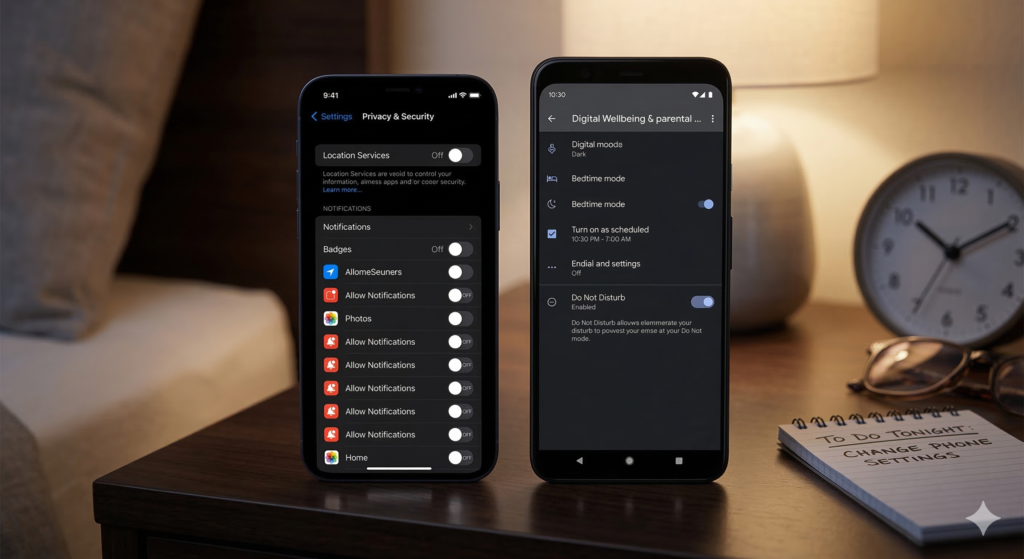
Setting 1: Turn Off the Advertising ID
What it is
Every smartphone has a built-in advertising identifier – a unique code that follows you from app to app, letting advertisers link your behaviour across your entire phone. Open a running app in the morning, a recipe app at lunch, a news app in the evening – without an advertising ID, those are three separate, anonymous visits. With one, they are three data points connected to the same person: you.
This is the backbone of personalised mobile advertising. Turning it off does not stop ads from appearing on your phone. What it does is sever the thread connecting your behaviour across apps – which is worth a lot to advertising companies and costs you absolutely nothing to remove.
How to do it
📱 On iPhone
- Settings → Privacy & Security → Tracking
- Toggle off “Allow Apps to Request to Track”
- Then: Settings → Privacy & Security → Apple Advertising
- Toggle off “Personalised Ads”
🤖 On Android
- Settings → Privacy → Ads
- Android 12 and above: tap “Delete advertising ID”-this removes it entirely
- Older Android: tap “Opt out of Ads Personalisation”
- Confirm when prompted
Why it matters: You are not stopping advertising. You are stopping the surveillance infrastructure that makes advertising hyper-personal and commercially valuable. One change, zero cost.
Setting 2: Audit Your Location Permissions
What it is
Location data is among the most commercially sensitive information your phone collects. Not because of what it tells someone about where you are right now – but because of what it reveals about your life over time. Where you sleep tells people where you live. Where you go during the day tells them where you work. The medical practices, places of worship, and support groups you visit tell them things about your health, your faith, and your private struggles that you have probably never shared with most people in your life.
Most people gave apps location access during setup, when they were clicking through prompts quickly, and have not revisited those decisions since. A significant number of those apps have no legitimate reason to know where you are – they asked because data has value, not because the app needs it to function.
How to do it
📱 On iPhone
- Settings → Privacy & Security → Location Services
- You will see every app that has ever asked for your location
- For social media, shopping, games, and news apps: set to Never
- For apps that need location occasionally (weather, maps): set to While Using – never Always
- For system services: scroll to the bottom, tap System Services, and turn off “Significant Locations”
🤖 On Android
- Settings → Location → App Permissions
- Tap each app to review and change its access level
- Deny location to any app that has no obvious need for it
- Set everything else to “Only while using the app” – avoid “Allow all the time”
- Also in Settings → Location: turn off “Google Location History” if you see it
A useful rule of thumb:
If you cannot immediately explain why a specific app needs your location to do its job, deny it. You can always re-grant access later if something breaks – but almost nothing will.
Setting 3: Disable Background App Refresh
What it is
Background app refresh is a feature that lets apps update their content, collect data, and phone home to their servers even when you are not using them – even when your screen is off and the phone is sitting face-down on a table. From a user perspective, it means your news app has fresh headlines when you open it. From a data perspective, it means apps are continuously monitoring your location, your activity patterns, and other sensor data around the clock.
Turning it off for most apps costs you almost nothing in terms of functionality. The app will update its content when you open it – a delay of a second or two. In exchange, you stop continuous background data collection and get meaningfully better battery life. It is one of the few settings that improves your phone experience in two ways simultaneously.
How to do it
📱 On iPhone
- Settings → General → Background App Refresh
- Tap “Background App Refresh” at the top and set it to Off
- Or leave it on and selectively disable it per app – go through the list and toggle off everything except apps that genuinely benefit from it (your email app, perhaps, or a navigation app)
🤖 On Android
- Settings → Apps → select any app → Battery
- Set “Background activity” or “Allow background usage” to restricted
- Repeat for every social media, shopping, and news app on your phone
- Alternatively: Settings → Battery → Battery Saver or Adaptive Battery – enabling these automatically limits background activity across all apps
Why it matters: Apps with background refresh access are collecting data on your schedule, not theirs. Turning it off means they can only see what you choose to show them – when you choose to open them.
The Bigger Picture
None of these three settings will make you invisible online. Privacy is not a light switch – it is a series of small, deliberate decisions that accumulate over time. What these settings do is close three specific doors that your phone leaves open by default. The advertising ID door. The location door. The background data door. Three doors, ten minutes, no cost.
The companies that designed these defaults were not making mistakes. They were making choices that benefit their business model. You are allowed to make different choices. You just have to know the settings exist.
GO UNTRACKED — FREE WEEKLY NEWSLETTER
Every week: one privacy topic, explained clearly, with one action you can take today.
Written by a cybersecurity professional. No jargon. No fear. Just honest guidance. → gountracked.com
Frequently Asked Questions
Q: Will turning these settings off break any of my apps?
Almost certainly not. Your apps will continue to function exactly as before. The only difference is that certain data collection happening in the background will stop. If something genuinely stops working, you can re-enable the specific permission for that app – but this happens very rarely.
Q: Do I need to redo these settings after a phone update?
After major iOS or Android updates, it is worth checking your privacy settings – particularly location permissions, which can occasionally be reset. A five-minute review after each significant update is a good habit to develop.
Q: Are these settings different on older phones?
The general principle is the same, but the exact menu names and locations vary between manufacturers and operating system versions. If you cannot find a specific setting, searching “advertising ID [your phone model]” or “location permissions [your phone model]” in YouTube will surface a walkthrough for your exact device.
Q: Is this enough to fully protect my privacy?
These three settings are a strong and important starting point – particularly for everyday data collection that happens without your knowledge. Full privacy protection involves additional steps over time: reviewing app permissions regularly, using a privacy-focused browser, being selective about which apps you install, and understanding how the services you use handle your data. Go Untracked covers all of this, one step at a time.
Q: What is the single most important of these three settings?
Location permissions. Location data reveals more about your life – your routines, relationships, health, faith, and finances – than almost any other single data type. If you only do one thing from this article, audit your location permissions.
Go Untracked · Know more. Share less.
Leave a Reply